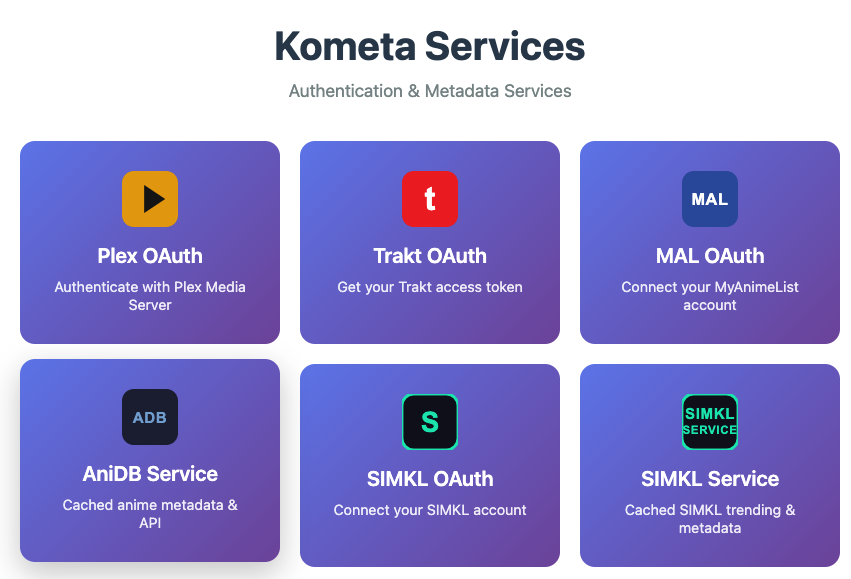
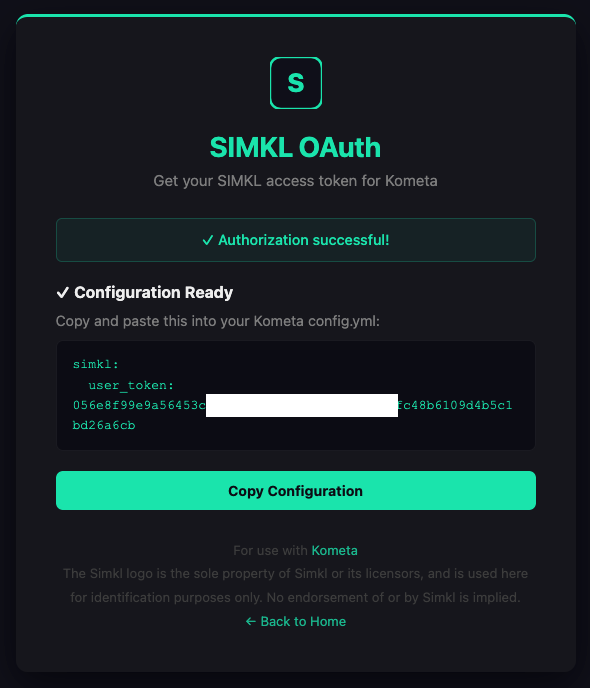
This page covers the online utilities for Plex, MyAnimeList and SIMKL authentication.
This is useful on setups, primarily Docker, where completing a browser-based flow locally is inconvenient.
For this reason, Kometa provides a utilities webapp which will take you through the authentication process and will provide the service's authentication block ready to paste into your config.
There is no logging, but if you feel more comfortable running these things locally you can find the source code here.
Click the top-level button.
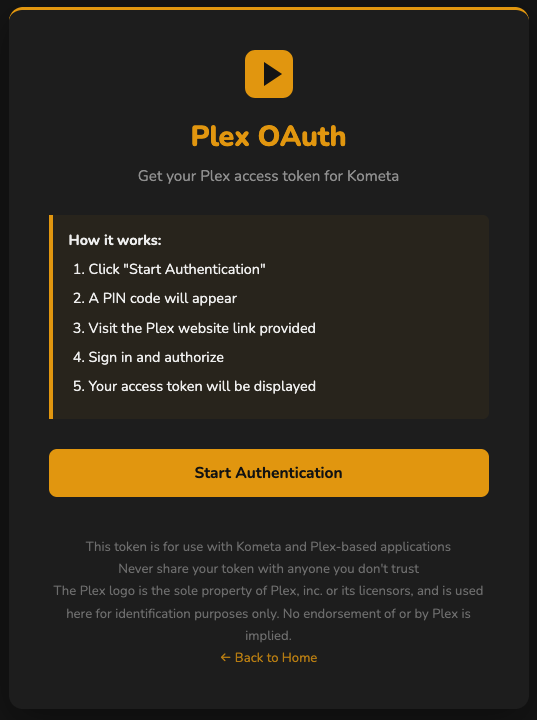
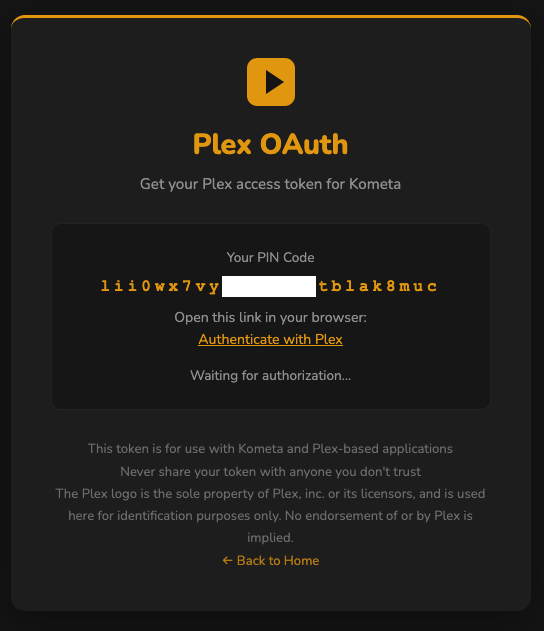
Click "Start Authentication". This will display a PIN and a link to start authentication. Click that link [which will open a new tab/window to Plex] and follow any instructions given by Plex:
Close that window when Plex indicates it is safe to do so.
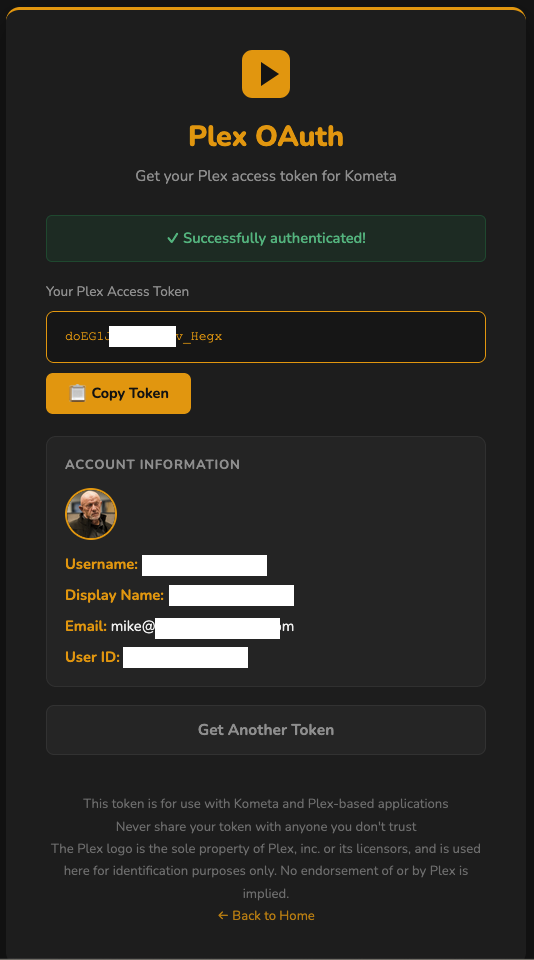
The utilities app will now display a Plex token and user details:
Copy that token to your Kometa config.yml
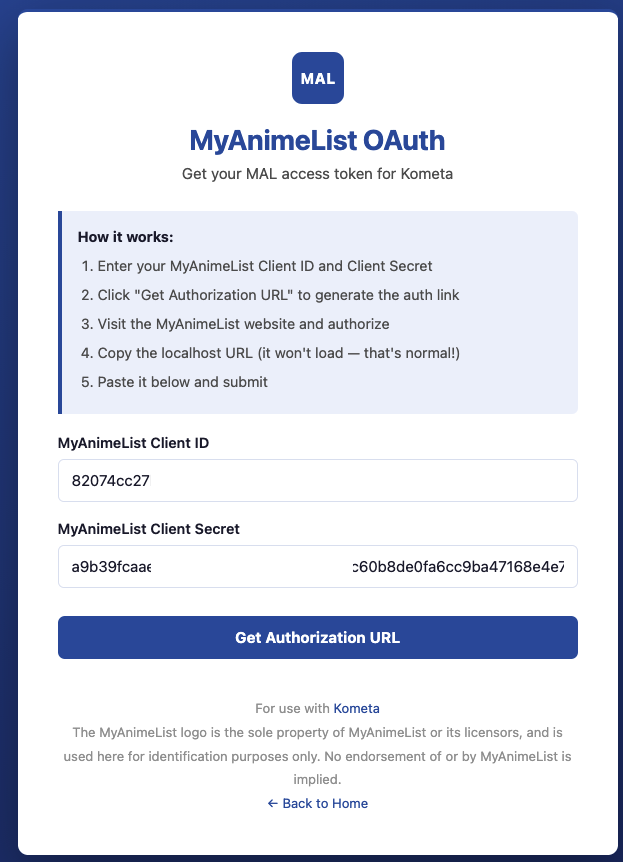
Click the top-level button, enter your MyAnimeList client ID and Secret.
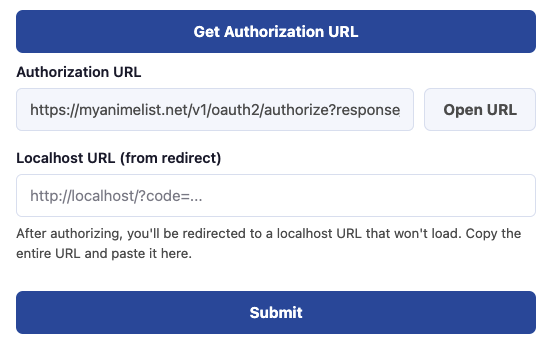
Click "Get Authentication URL". This will fill in the auth URL:
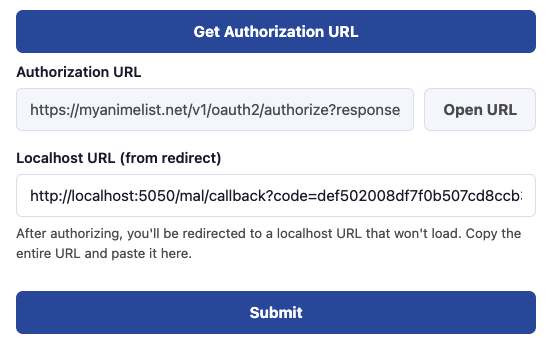
Click "Open URL" and follow any instructions given. This will take you to a localhost URL that will fail to load.
Paste that URL into the field and click "Submit":
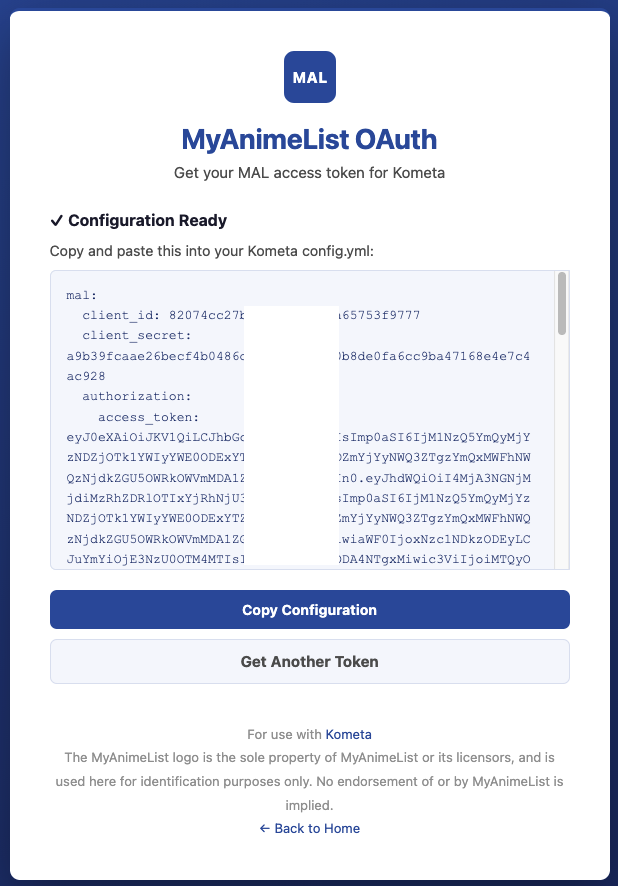
A Kometa MyAnimeList authentication block will be displayed.
Copy that block to your Kometa config.yml
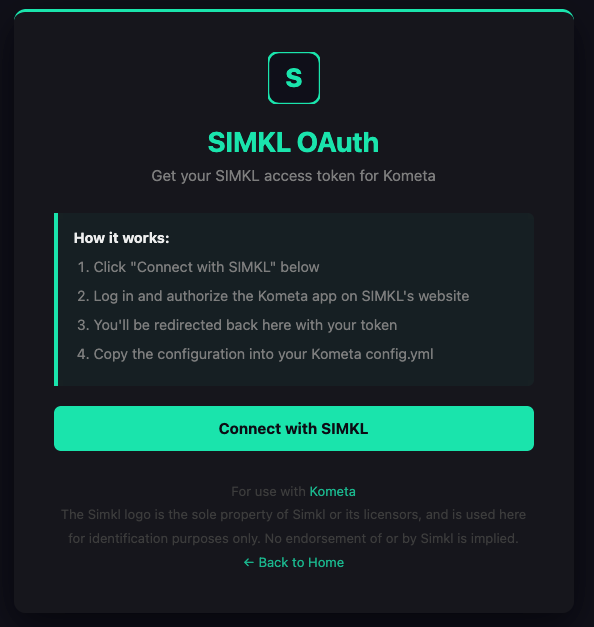
Click the top-level button.
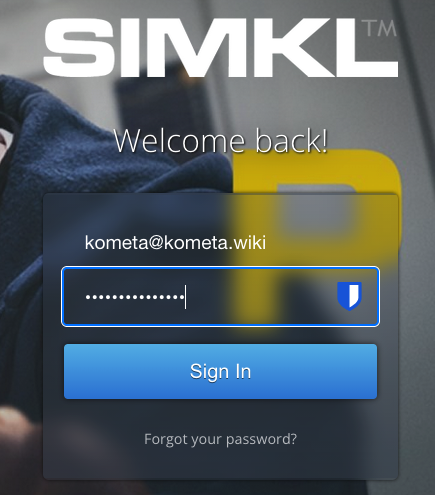
Click "Connect with SIMKL". Log into your SIMKL account:
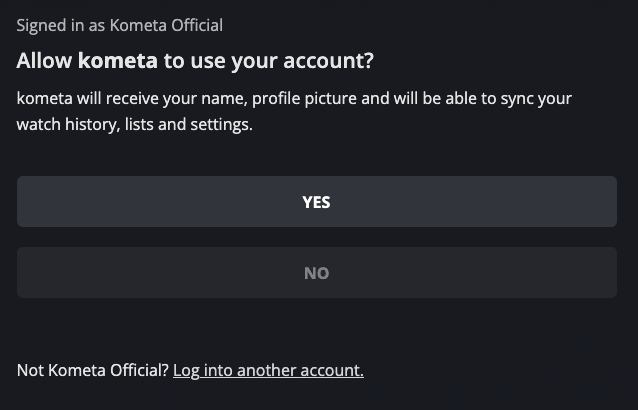
Click "Yes" to grant Kometa access:
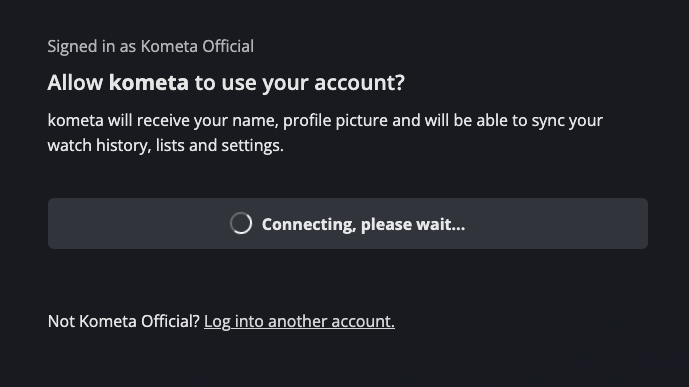
Wait a moment:
A Kometa SIMKL config block will be displayed.
Copy that block to your Kometa config.yml
These services do not store season or episode-level ratings, using these options will allow show ratings to be
applied at the season or episode level.
YAML Lists Explained
YAML supports different ways to define lists. Below are some common methods:
1. List Within a Mapping
fruits:
  - apple
  - banana
  - cherry
2. Inline Style
fruits: [ apple, banana, cherry ]
Each style can be used depending on your needs. The block style is typically more readable for longer lists,
while the inline style is compact and useful for short lists.
YAML Dictionaries Explained
Dictionaries are used to associate key/value pairs that are unordered. Dictionaries can be nested by increasing
the indentation,
or new dictionaries can be created at the same level by resolving the previous one.
cache: true
cache_expiration: 60
The "keys" are cache and cache_expiration and the "values" are true and
60 respectively.
You can use multiple score filters but the number will have to match every filter. All unrated items are considered
to have a 0 rating.
These filters only work if the URL is to the List View of the Letterboxd list (i.e. it should have
/detail/ in the URL) or to an account's Reviews (i.e. it should have
/USERNAME/films/reviews/ in the URL).
This filter only works if the URL is to the List View of the Letterboxd list (i.e. it should have
/detail/ in the URL).
When title is not provided and the mapping name was not specified as an ID, the default behaviour is to
use the mapping name as title for matching.
When mapping_id is not provided and the mapping name was specified as an ID, the default behaviour is
to use the mapping name as mapping_id for matching.
When the server does not have a Plex Pass then the Edition Field is not accessible. In this scenario, Kometa will
check the movie's filepath for {edition-...} to determine what the edition is.
Requires Plex Pass.
Must be using the New Plex Movie Agent or the New Plex TV Agent.
Each default has a key that when calling to effect a specific collection/overlay you must replace
<<key>> with when calling.
You can use current_year to have Kometa use the current year's value. This can be combined with a
-# at the end to subtract that number of years. i.e. current_year-2
Also filters out missing movies/shows from being added to Radarr/Sonarr. These values also cannot use the count
modifiers.
You can use current_year to have Kometa use the current year's value. This can be combined with a
-# at the end to subtract that number of years. i.e. current_year-2
Also filters out missing movies/shows from being added to Radarr/Sonarr. These values also cannot use the count
modifiers.
You can use current_year to have Kometa use the current year's value. This can be combined with a
-# at the end to subtract that number of years. i.e. current_year-2
Also filters out missing movies/shows from being added to Radarr/Sonarr. These values also cannot use the count
modifiers.
Also is a Tag Filter and can use all of those modifiers.
Requires Template Variables to function
Designed to use the TRaSH Guides filename naming scheme
Editions overlay is designed to use the Editions field within Plex (which requires Plex Pass to use) or the TRaSH Guides filename naming scheme
Designed to use the TRaSH Guides filename naming scheme
While these overlays can technically be applied at this level, they were not designed for it. For example, a show's
season cannot have a resolution since it is not a video file, and an episode cannot have a Common Sense rating since
only Movies and Shows are rated by Common Sense.